CAD & engineering
Open and edit STEP files online
11 October 2026 · 7 min read
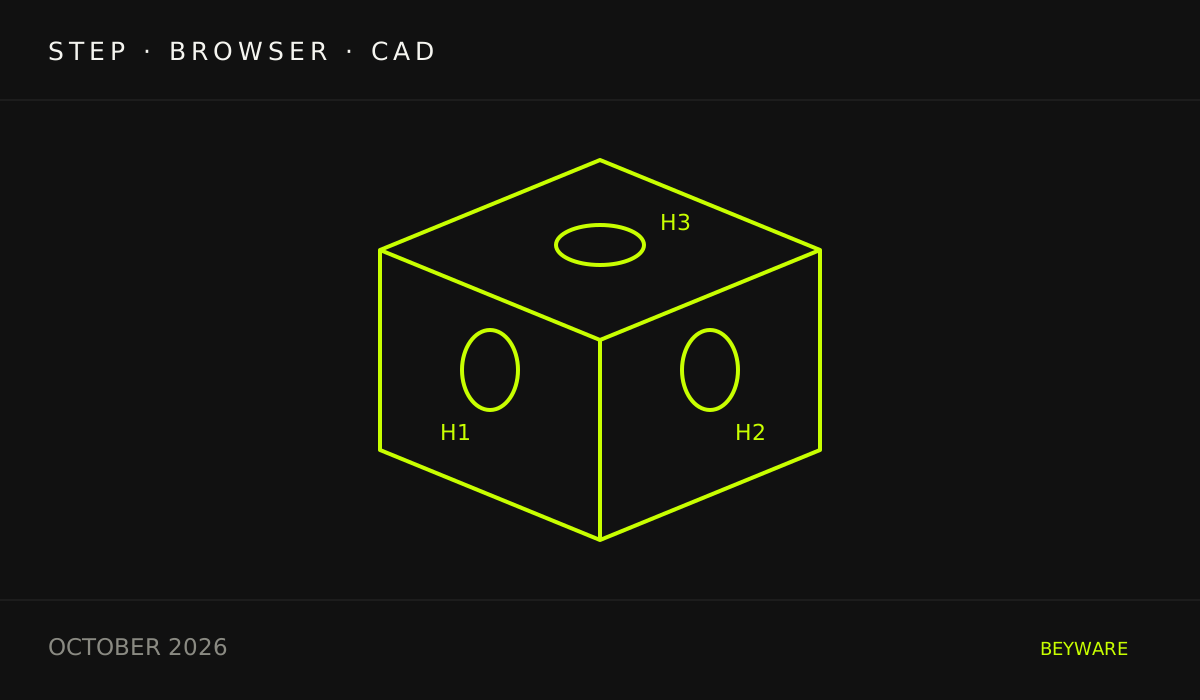
In short: You can open and edit a STEP file right in your browser without installing CAD software. With cadmark you upload the file, see recognised holes, pockets and hole patterns with fixed identifiers such as H3, change dimensions with preview and undo, and export the result as STEP, STL or a technical drawing (PDF). cadmark runs on Windows, macOS and Linux and costs CHF 20 per month after a 7-day free trial.
Disclosure: cadmark is a BEYWARE product. Updated on 14 October 2026 with the checked STL export of the web-app example.
Start with a sample STEP file
Download the illustrated guide in German (6-page PDF, approximately 769 kB). It shows the checked manual workflow on the parametric demo part: four mounting holes from 6.6 to 8 mm, preview, undo/redo, and STEP export with reimport. The guide is also free and requires no account.
Download the sample STEP part, approximately 149 kB. The download is free and requires no account. You can open it in a CAD application that supports STEP. Using the cadmark web app requires a separate cadmark account and subscription; a payment card is required to start the seven trial days. AI costs are separate.
The part has a pocket, a boss and four mounting holes. Its overall dimensions are 120 × 84 × 32 mm, and the four mounting holes are Ø 8 mm. It is practice geometry. Fit, strength and print settings need separate checks for any actual use.
After importing it into cadmark, open Part → Features to inspect recognised elements. In our test, the mounting holes appeared as H3 through H6 at Ø 8 mm, and the pocket as PK1 with a depth of 11 mm. Select a feature and compare its highlight on the part with the displayed dimensions.
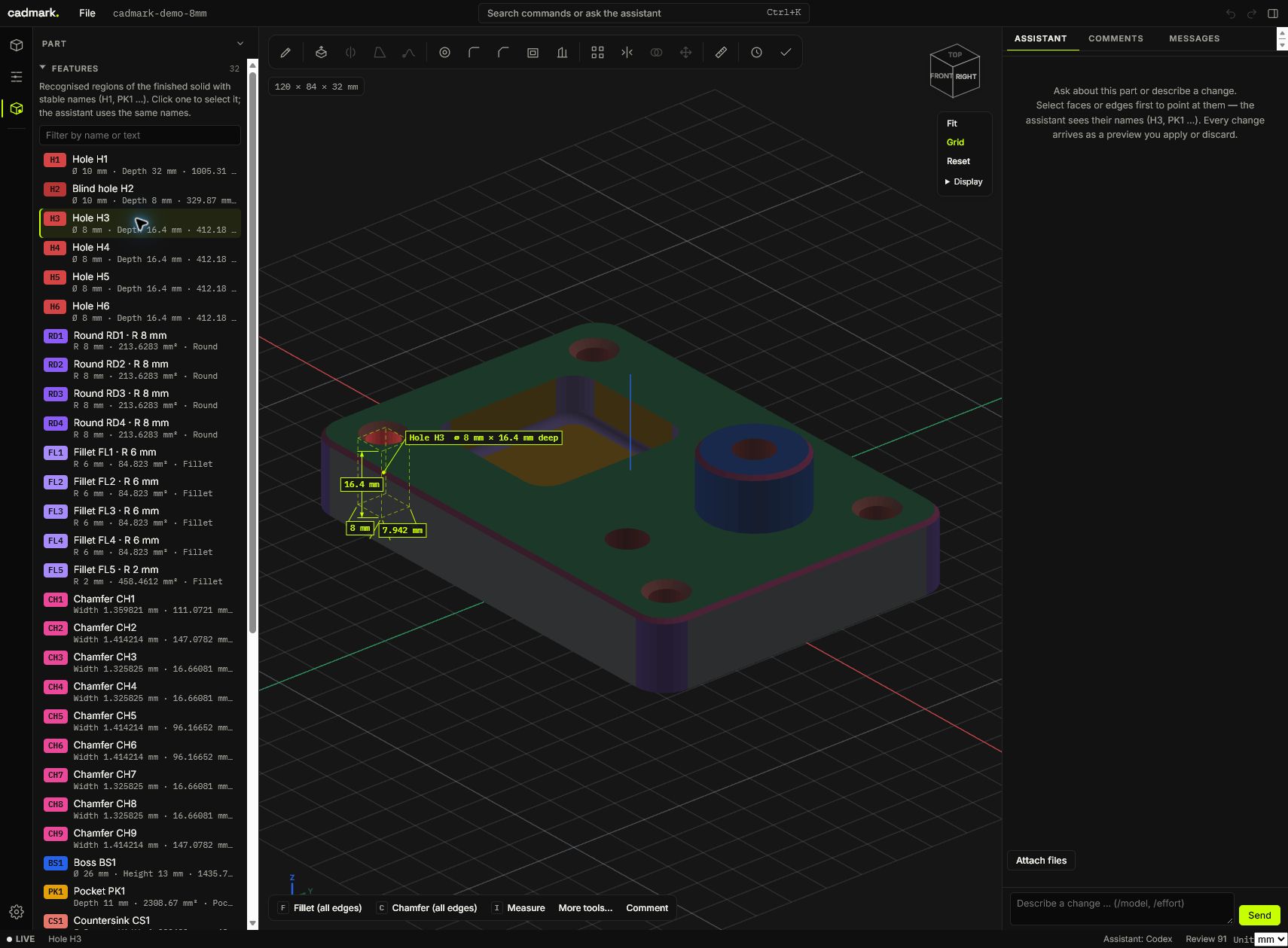
Actual screen after the STEP reimport. This capture shows feature recognition and selection on the sample part.
What is a STEP file?
STEP (file extension .step or .stp) is a neutral exchange format for 3D CAD models, standardised as ISO 10303. Suppliers, customers and manufacturers use it to pass parts between different CAD systems. Unlike a mesh format such as STL, STEP describes exact geometry: cylinders stay cylinders and dimensions can be measured precisely.
Open a STEP file in the browser: step by step
- Create an account at beyware.com/konto and start the subscription. The first 7 days are free; the first charge happens afterwards.
- Open cadmark in your browser – a current version of Chrome, Edge, Firefox or Safari. Nothing is installed.
- Upload the file. Besides STEP, cadmark also opens IGES, BREP and STL.
- Inspect the part. Zoom to cursor, orbit around the point you click, a view cube and a grid help, also with long profiles.
Recognise holes and features automatically
After opening, cadmark recognises typical design features: holes with drill points, countersinks and counterbores, slots, pockets, grooves, ribs and chamfers. Hole rows, grids and bolt circles are grouped as patterns and matched against ISO clearance and tap drill holes.
Every feature gets a stable identifier such as H3 or PK1. The benefit: when dimensions change, H3 is still H3. Comments and inspection dimensions keep their target, and you and the assistant talk about the same element.
Change dimensions – with preview and undo
For a part created parametrically in cadmark, edit its driving dimensions under Model tree → Parameters. Imported STEP geometry has no original design parameters: geometry and recognised features are available, while the original sketches and construction steps are not restored by importing the file. Direct operations edit the geometry, and inspection dimensions help check the result. Whether a change succeeds depends on the part and the operation.
A preview shows the result before you apply it. Displayed dimensions come from the exact geometry of the CAD kernel (OpenCascade through CadQuery). Check the target feature, dimension and other surfaces before applying the change.
Checked example: mounting holes from 6.6 to 8 mm
On 13 October 2026, we checked this workflow in the web app using an independent copy of the parametric demo part:
- In the model tree, change Mounting hole diameter from 6.6 to 8 mm and confirm the input.
- Rotate and inspect the preview. Overall dimensions stayed at 120 × 84 × 32 mm; displayed volume decreased from 164646 to 163467.6 mm³.
- Choose Apply change. The app confirmed the saved change and validated geometry.
- Use Undo: the parameter returned to 6.6 mm and volume to 164646 mm³. Redo restored the 8 mm change.
- Export through File → STEP, then reopen that file. The imported part showed the same overall dimensions and recognised the four mounting holes at Ø 8 mm.
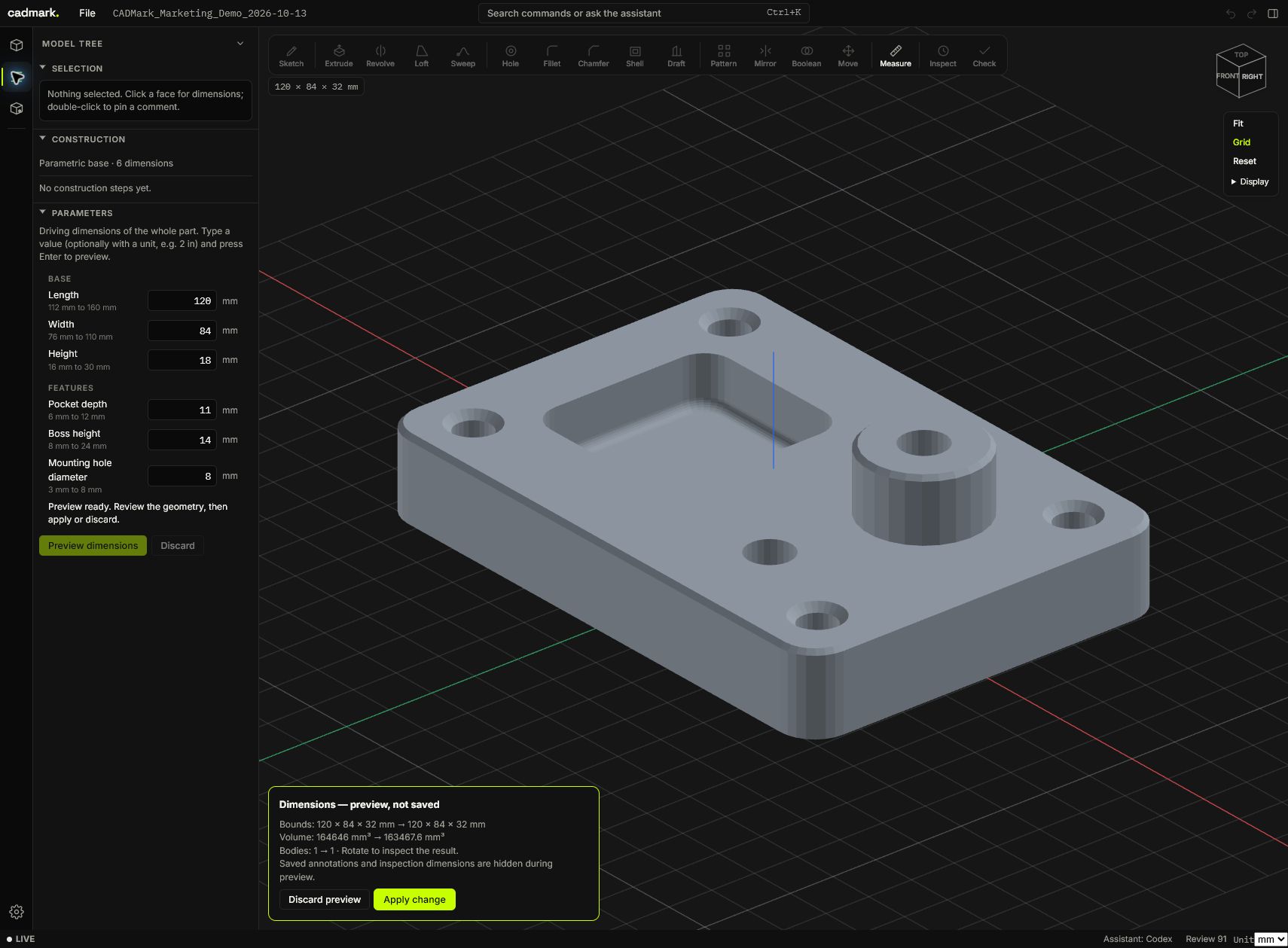
Actual preview of the parametric demo part before saving. This test used the manual CAD controls. The workflow demonstrates a parameter change, preview, undo/redo and STEP export with reimport on this part. The downloadable file above is the exported result; it contains geometry and has no original design parameters after import.
Download the sample as STL for a slicer
Download the sample STL part, approximately 791 kB. This download is also free and needs no account. It was exported through File → STL for 3D printing in the production web editor on 14 October 2026, from the reopened 8 mm demo part.
STL stores a triangle mesh and has no original CAD parameters. The format has no inherent unit: interpret the coordinates as millimetres on import and check the size 120 × 84 × 32 mm in your slicer.
Our file checks found 15,826 triangles in one connected component, matching overall dimensions, and no open or non-manifold edges, orientation conflicts or degenerate triangles. We compared the exact exported coordinates and did not repair the mesh. This demonstrates the export and those mesh checks on the sample. It does not establish a slicer test or physical print. Check orientation, material, fit, supports and print settings separately for your use case.
Create a technical drawing from the STEP file
For the workshop or a quote, cadmark exports a technical drawing as PDF:
- front, top and side views in first-angle projection with hidden lines
- an isometric view
- overall dimensions and hole callouts
- a hole table and a title block
cadmark picks scale and sheet size itself. You can also export the part as STEP for other CAD systems or as STL, for example for 3D printing.
CAD in the browser with an AI assistant
If you like, describe changes in words and refer to identifiers such as H3. The assistant works through your own account, which you connect inside cadmark: your ChatGPT subscription, your Claude subscription (Pro/Max) or Ollama with your own server or Ollama Cloud. That cost is not included in the cadmark price. All CAD features also work without AI.
Where are the files stored?
Projects and uploads are stored on BEYWARE’s server in Germany (netcup), separated per account. When you use the assistant, your requests and the necessary model data go only to the provider you chose: OpenAI, Anthropic or the Ollama server you name. Also export important versions as STEP.
Who is it for?
cadmark is for designers, engineers and makers who want to understand and change parametric parts faster, without a local CAD installation. A desktop or laptop screen is recommended. The feature set focuses on the tasks described here; the 7-day free trial is the best way to check whether it fits your workflow.
Cost
CHF 20 per month, 7 days free, cancel any month. A card is stored through Stripe when you start; the first charge happens after the trial. All details are on the cadmark product page.
Your first verifiable step
Open the sample, select H3 and check Ø 8 mm. Then try an individual part file of your own that is suitable for uploading. Read how cadmark works for feature recognition, the assistant and previews, or start the seven trial days.